
I recently ran a site audit for one of my Shopify clients and noticed that he had been deleting products and collections once they were no longer available. His men’s fashion brand runs seasonal collections and products, so after the season has passed, he simply deleted the entire collection and all the products it contained.
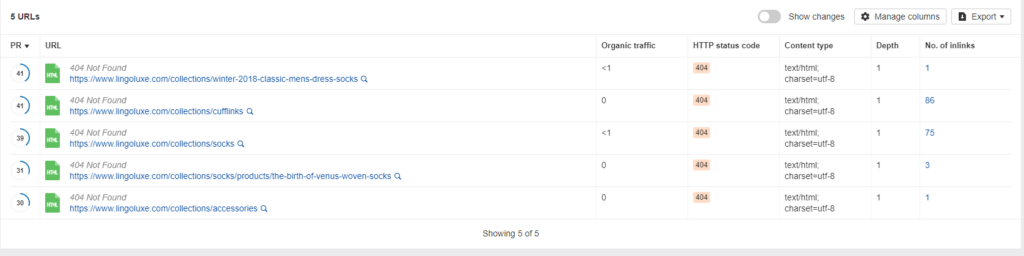
The site audit showed us that those deleted links were now 404 error pages.
Are 404 Error Pages Bad?
They aren’t good. A 404 error occurs when a previously active link is now broken. Basically, the page does not exist any longer. Once Google hits one on your site, they no longer index it and it will not appear in search results. However, if your link has been advertised, it is possible that people will click on that link from another site, through a Pinterest pin or social media share and landing on a 404 error page will create a poor user experience. Google cares about user experience and will penalize.
And your users care about their experience, too. When they land on an error page, they may assume that your site no longer exists or they may lost trust.
What Is The Best Way To Manage Out of Stock Products?
The answer is, it depends…
There are three options available and the best one will depend on a few factors.
- Option 1: Keep the page published.
- Option 2: Create a link redirection.
- Option 3: Delete the page to show a 404 error page.
When Should You Keep the Page Published?
When you page is indexed in search, it will appear in search results. When too many people click on your link and then immediately return to the search, Google interprets that action as a negative user experience and you sitewide rankings could be negatively affected. How you handle product pages that are out of stock could help or harm your entire site.
If a product is out of stock, but you intend to restock the product in the future, provide as much information to the visitor as possible. Label the product as being out of stock and provide an expected date that it will be in stock, if possible.
Another helpful option is to add a Back in Stock app to your Shopify store that will notify customers through either email or messenger when the product is available. Keeping customers on your site and encouraging them to navigate to additional pages will improve your customer experience and lead to additional sales. Include suggested content or related products on the product page to encourage the customer to stick around a bit longer.
When a product is out of stock, it is important to keep the page published to preserve the “link juice,” however, be sure to prioritize the user experience.
When Should You Delete the Page?
When a product or collection is permanently discontinued, you will want to delete the page. To preserve both the optimization of your site and your user experience, this is not as simple as pushing the Delete button and moving on. This page, although obsolete, could be helping your site in a few different ways that you may not realize.
- The page could have backlinks to it from other websites or from social media.
- Google and other search engines could be sending organic traffic to the page.
- The page could be converting into sales by pushing visitors through to other pages.
Before deleting the page, consider which page on your site would be the next best choice to land on when you delete this page. If you carry a similar product, redirect this page to that product. In most cases, I advise redirecting either to a related collection page or to the home page.
How to Redirect Your Deleted Page
When someone clicks on a link, they expect to see a page related to the title and description of that link. Once a page is obsolete, it is important to redirect that link to the next best option in order to preserve the “link juice,” benefit from the traffic, and maintain the customer experience.
Once you have decided which page to redirect your deleted page to, copy the url of the page you will delete and the page you will direct the deleted page to. In your Shopify dashboard, click Online Store–> Navigation. At the top you will see URL Redirects. Click that and then Create URL Redirect. The top entry will the url for the page you are deleting. The bottom will be the url for the page you want to deleted page to redirect to.
After you have saved the redirect, you can now delete the page.
Does Your Shopify Store Have Broken Links And Other Issues?
Now that you know the right way to delete product and fix links, how do you know if you have a bunch of broken links weighing down your store?
Running an audit for your store can help you identify the exact tasks needed to get your website back on track and ranking on page one.
Interested in scheduling an audit for your Shopify store?
Head over to Storetasker to book your audit.

Excellent information. I saved it to my GQ’s (task manager that interfaces with Google Apps for Biz)